
See what you owe vendors (Aged Payable)
Use the Aged Payable report to see every unpaid vendor bill by how overdue it is, then filter it, open a bill and export the report.
Where to find it
AccountingReportsAged Payable
What the report shows
One row for every unpaid vendor bill, with the amount split by how late it is: Current (not yet due), 1-30, 31-60, 61-90 and 90+ days past the due date. Use it to plan which bills to pay first.
Steps
- Open Accounting > Reports and choose Aged Payable under Partners.
- Read the table. Each row shows the Vendor, the Bill, the vendor's Reference, the Bill Date, the Due Date, and the amount in the column that matches its age. Total Due is the whole balance of that row. Scroll down for the total of every column.
- Change As of to see what you owed on an earlier day. Type the date as DD/MM/YYYY and press Tab.
- Use the filters at the top. Pick one Vendor, or type part of a name, bill number, reference or amount in Search. Click the × in the Vendor box to clear it.
- Click a bill number to open the bill behind the balance. The bill shows the Current Due and the Vendor Balance.
- Click Aged Payable in the path at the top of the page to go back to the report, then click PDF or XLSX to export it.
Note
The report only counts posted bills. Draft bills do not appear until you confirm them.
Tip
For the same information grouped by vendor with one balance each, use Supplier Balance Summary.
What happens next
When you are ready to settle a bill, see Pay a vendor bill.
Was this lesson helpful?
Thank you for the feedback.
Keep learning
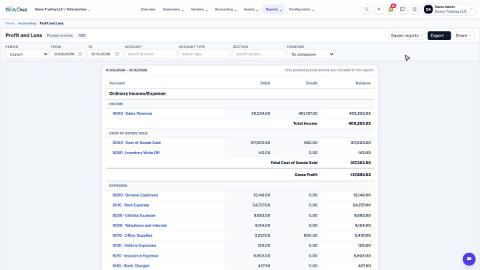
Run a Profit and Loss report
See your income, cost of goods sold, expenses and net profit for any period, and compare it with the year so far or the same dates last year.
Run a Balance Sheet
See what the company owns, what it owes and what is left for the owners on any date, and compare it with last month.
Run the Cash Flow report
See where your cash came from and where it went in a period, split into operating, investing and financing activity.
 1:26
1:26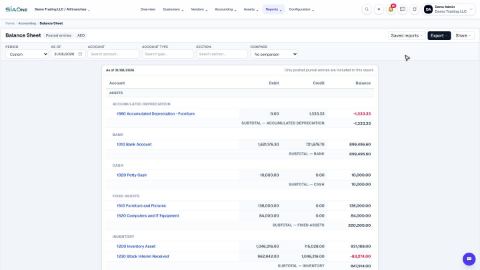 1:16
1:16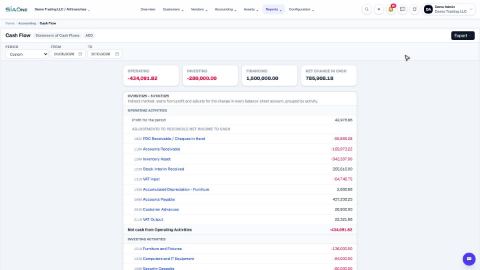 1:19
1:19