
See everything for one customer or vendor (Partner Ledger)
List every invoice, bill, payment and credit note for a customer or vendor in date order, with a running balance.
Where to find it
AccountingReportsPartner Ledger
Steps
- Open Accounting > Reports and choose Partner Ledger under Partners.
- Set the period. Type the From and To dates and press Tab after each, or pick a ready-made Period. Opening balances brought forward from before your From date appear first.
- Pick a Partner - a customer or a vendor - to see only their entries.
- Read down the lines. For a customer, Debit adds to what they owe you (an invoice) and Credit reduces it (a payment or a credit note). For a vendor it is the other way round. Balance is the running total after each line.
- Use Accounts to switch between Receivable / Payable entries and All accounts.
- Click a document number to open it, then click Back to return to the ledger. Click Export and choose PDF, Excel or CSV to export the ledger.
Tip
More filters sit in the same bar: Journal, Journal Type, Partner Type and Search (a move number, reference or label). Entry View switches between Business View, Accounting View and Only Reversals / Adjustments. The table is wide: use Customize to hide the columns you do not need.
Note
The report only counts posted entries. To send a customer a tidy statement of their account, use the Statement of Account report.
What happens next
For one line per customer instead of every entry, use Customer and Supplier Balance Summary.
Was this lesson helpful?
Thank you for the feedback.
Keep learning
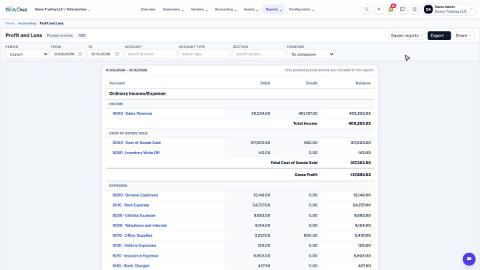
Run a Profit and Loss report
See your income, cost of goods sold, expenses and net profit for any period, compare it with last year or month by month, and open the entries behind any figure.
Run a Balance Sheet
See what the company owns, what it owes and what is left for the owners on any date, and compare it with last month or month by month.
Run the Cash Flow report
See where your cash came from and where it went in a period, split into operating, investing and financing activity.
 2:01
2:01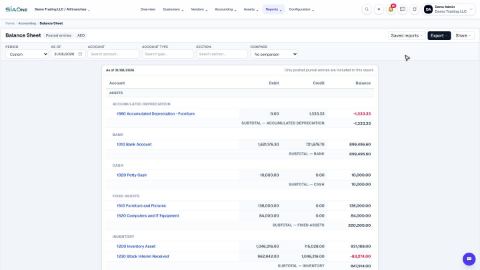 1:57
1:57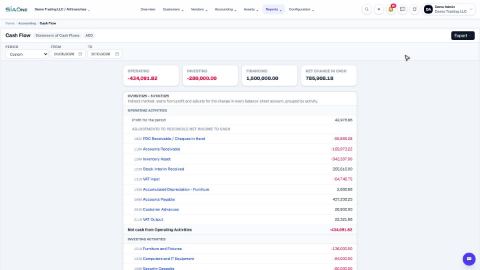 1:33
1:33