
Run the Tax Report
List the VAT on every sale and purchase for a period, split into VAT you charged and VAT you paid, with a link to each document.
Where to find it
AccountingReportsTax Report
Steps
- Open Accounting > Reports and choose Tax Report under Tax.
- Type the From and To dates of the VAT period and press Tab after each, or pick a ready-made Period.
- Each line is one tax on one document. You see the Date, the Type (sales or purchase), the Document, the Partner, the partner's TRN, the Tax name, the Rate, the Taxable amount and the Tax Amount. Credit notes appear with negative amounts.
- Open Tax Type and choose Sales VAT to see only the VAT you charged your customers. Choose Purchase VAT to see only the VAT you paid on bills and cash purchases. You can also pick one tax in the Tax box, or one Source such as Customer Invoice, Vendor Bill or Journal Entry.
- Click a document number to open the invoice or bill behind a line. Click Back to return to the report.
- Click Export and choose PDF, Excel or CSV.
Note
The report only counts posted documents. Check that every invoice and bill of the period has been confirmed before you rely on the totals. A journal entry appears here only when a tax is chosen on its line. VAT posted straight to a VAT account, without a tax, is listed in VAT Reconciliation.
Tip
Use the same dates when you compare the report with the VAT Output and VAT Input lines of the Trial Balance. To turn the same figures into the boxes of the UAE return, see Prepare the UAE VAT Return (VAT 201).
What happens next
Give your accountant the exported file together with the Profit and Loss report for the same period.
Was this lesson helpful?
Thank you for the feedback.
Keep learning
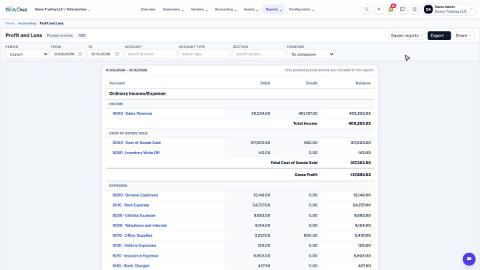
Run a Profit and Loss report
See your income, cost of goods sold, expenses and net profit for any period, compare it with last year or month by month, and open the entries behind any figure.
Run a Balance Sheet
See what the company owns, what it owes and what is left for the owners on any date, and compare it with last month or month by month.
Run the Cash Flow report
See where your cash came from and where it went in a period, split into operating, investing and financing activity.
 2:01
2:01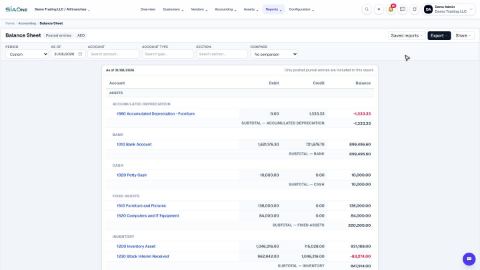 1:57
1:57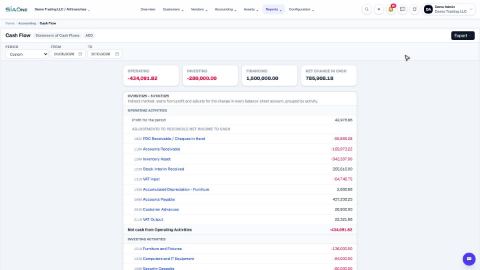 1:33
1:33