
See customer and supplier balances at a glance
One line per customer or vendor showing what was charged, what was settled and what is still due.
Where to find it
AccountingReportsCustomer Balance Summary
Steps
- Open Accounting > Reports and choose Customer Balance Summary under Partners.
- Each customer has one line: Charged (all invoices), Settled (what has been paid or credited) and Balance Due. The customers who owe the most are at the top.
- To see an earlier day, pick End of last month in Period or type an As of date and press Tab. Pick one Customer, or open Balance and choose Owes Us, In Credit or Over Credit Limit to list only those customers. Click the × in a box to clear it.
- Click Export and choose PDF, Excel or CSV.
- Choose Supplier Balance Summary in the same menu for the same view of your vendors: Billed, Settled and Balance Due.
Tip
To see the individual invoices behind a balance, use Open Invoices and Unpaid Bills. To see every entry for one customer or vendor, use the Partner Ledger.
What happens next
To see how late the balances are, run Aged Receivable or Aged Payable.
Was this lesson helpful?
Thank you for the feedback.
Keep learning
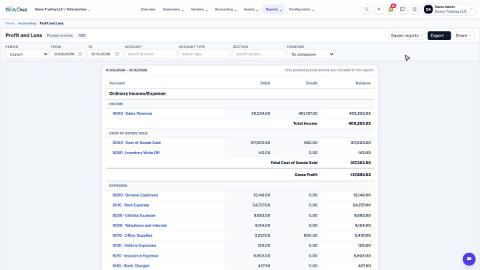
Run a Profit and Loss report
See your income, cost of goods sold, expenses and net profit for any period, compare it with last year or month by month, and open the entries behind any figure.
Run a Balance Sheet
See what the company owns, what it owes and what is left for the owners on any date, and compare it with last month or month by month.
Run the Cash Flow report
See where your cash came from and where it went in a period, split into operating, investing and financing activity.
 2:01
2:01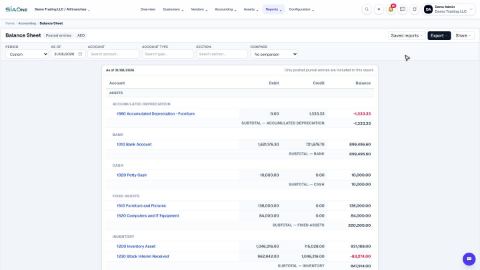 1:57
1:57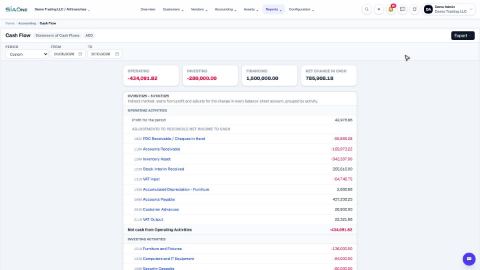 1:33
1:33