
Close the month: the reports to run, in order
The reports to run at the end of every month, in the order that catches problems early, with what to look for in each.
Before you start
Confirm every invoice and bill that belongs to the month. The reports only count posted entries, so a draft document is missing from every number below. In the Period box, pick Last month (or End of last month for the reports that show a position on one day). You can also type the first and last day of the month yourself.
Steps
- Run Aged Receivable under Partners, with Period set to End of last month. Look at the 31-60, 61-90 and 90+ columns, and chase those customers. See See who owes you money.
- Run Aged Payable the same way. Decide which vendor bills to pay next. See Aged Payable.
- Run Payment Register under Management for last month. Look at the Unallocated column: a payment with an amount there has not been matched to an invoice or bill. See Payment Register.
- Run Tax Report under Tax for last month, and check the Sales VAT and Purchase VAT lines. When you file, use the same dates in VAT Return (VAT 201). See Tax Report and Prepare the UAE VAT Return.
- If you hold foreign currency, open FX Revaluation under Currency and look at the Adjustment. Post it only when your accountant has agreed the closing rate. See FX Revaluation.
- Run Trial Balance under Ledgers and scroll to the Total row. Debit and Credit must be equal in the opening, period and closing blocks. See Trial Balance and General Ledger.
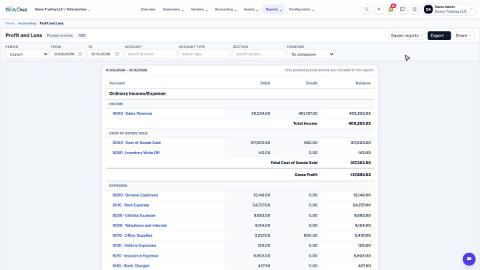
- Run Profit and Loss under Statements for last month and read the Net Income. See Profit and Loss.
- Run Balance Sheet with Period set to End of last month. The Difference line must show 0.00. See Balance Sheet.
- Run Cash Flow for last month to see how your cash moved. Then use Export on the reports you want to keep or send to your accountant. See Cash Flow.
Tip
If a figure looks wrong, click the account to open its entries in the General Ledger, then click the document numbers to find the entry behind it.
Note
Reports do not close or lock the month. If something needs correcting, fix the document and run the report again.
What happens next
Next month, start again from step 1 with the new dates.
 2:01
2:01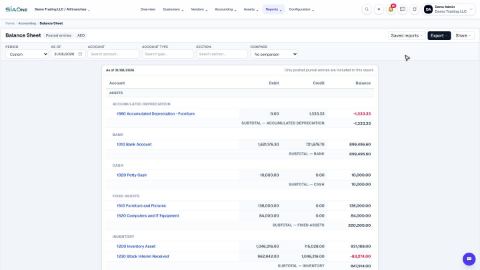 1:57
1:57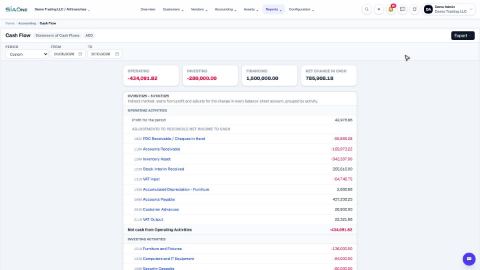 1:33
1:33