
Cancel an order or delete a draft RFQ
Cancel an order you no longer need and keep the record, or delete a draft RFQ for good.
Where to find it
PurchaseOrders
Before you start
Cancel an order before any goods are received. If goods are already in, return them instead: see Return goods to a vendor.
Steps
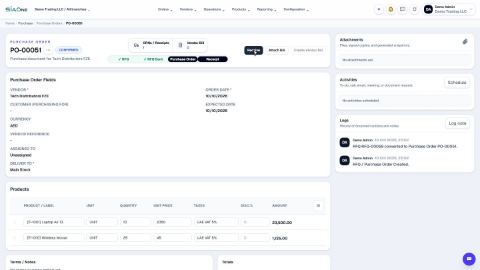
- Open Purchase, search for the order and click it. Its status is Confirmed.
- Open the actions menu (the three dots next to the number) and click Cancel.
- A box asks you to confirm. Click Yes, cancel. The status changes to Cancelled.
- A cancelled document stays on file. Reset to Draft in the same menu brings it back if you cancelled by mistake.
- A draft RFQ that nobody needs can be deleted for good. Open it, open the actions menu and click Delete.
- Click Delete in the box that asks you to confirm. The RFQ is removed and cannot be brought back.
Important
Delete is only offered for a draft that has never been confirmed, and it cannot be undone. When in doubt, use Cancel: the record is kept and shows in the list as Cancelled.
Tip
Need to change an order instead of stopping it? See Correct a confirmed purchase order.
What happens next
Raise a new order if you still need the goods: Create a purchase order.
Was this lesson helpful?
Thank you for the feedback.
Keep learning
Create a purchase order
Start a request for quotation (RFQ) for a vendor, add the products, then confirm it into a purchase order.
Print an RFQ or a purchase order
Make a PDF of an RFQ or a purchase order to send to the vendor or keep on file.
Email an RFQ to a supplier
Send the request for quotation to the supplier by email, with the PDF attached.
 1:54
1:54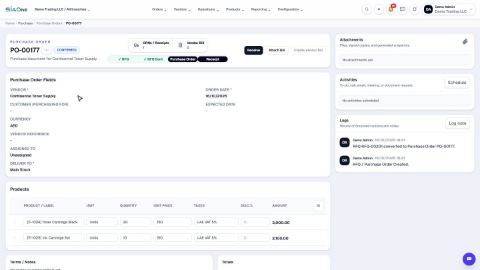 0:56
0:56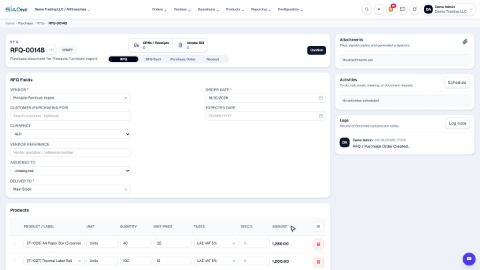 1:07
1:07