
Edit the details of a confirmed purchase order
Add the vendor's reference, set the expected date, choose the buyer or add a note on a confirmed order. Quantities, prices and stock stay as they are.
Where to find it
PurchaseOrders
Before you start
The order must be confirmed. To change a quantity or a price instead, see Correct a confirmed purchase order.
Steps
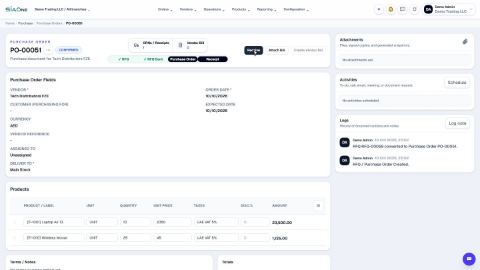
- Open Purchase, search for the order and click it. Its status is Confirmed.
- Open the actions menu (the three dots next to the number) and click Edit details. A small window opens.
- Type the Vendor reference, for example the number on the vendor's quotation.
- Set the Expected date, and choose who is responsible for the order in Assigned to.
- Type a note for the team in Notes, then click Save details. You can also add a description under Line descriptions.
- The order shows the new details. The Logs record who changed what.
Note
The person you choose in Assigned to is the buyer. The Purchase by Buyer report adds up the orders of each buyer: see Run the purchase reports.
Tip
Amounts, quantities and stock stay exactly as they were, so this is safe to use after the goods have been received.
What happens next
Carry on with the order: receive the goods when they arrive.
Was this lesson helpful?
Thank you for the feedback.
Keep learning
Create a purchase order
Start a request for quotation (RFQ) for a vendor, add the products, then confirm it into a purchase order.
Correct a confirmed purchase order
Wrong quantity or price on an order you have already confirmed? Use Correct order. The order stays confirmed, and stock, bills and payments follow.
Email an RFQ to a supplier
Send the request for quotation to the supplier by email, with the PDF attached.
 1:54
1:54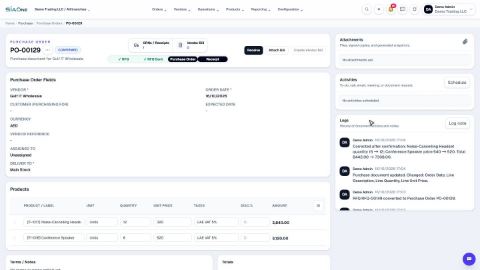 1:29
1:29 1:07
1:07