
See how a product's purchase price changed
Purchase Price History shows the first, last, lowest and highest price you paid for each product, so you can spot a vendor who is getting dearer.
Where to find it
PurchaseReportingPurchase Price History
Steps
- Open Purchase, then go to Reporting > Purchase Price History.
- Choose a Period long enough to include the older purchases, for example This year.
- Each row is a product. First Price and Last Price are the first and the latest price you paid in the period, and Change is the difference in percent.
- Lowest, Highest and Average show the range. Last vs Average tells you whether the latest price is above or below your average. Last Purchase and Last Vendor say when and from whom you bought it.
- Set Price Change to Increased to see only the products that became dearer, or Decreased for the ones that became cheaper.
- Click a product to open Purchase Detail for it, with every purchase behind these prices.
Note
By default the prices come from Bills & Cash Purchases, the prices you were really billed. Change Based On to Purchase Orders to compare ordered prices instead. Prices are per unit, after discounts, in your company's currency. The biggest changes are listed first.
Tip
Before you confirm a new order, check this report. If Last vs Average is a high positive number, ask the vendor about the price.
What happens next
To see every purchase line, see See every purchase line (Purchase Detail).
Was this lesson helpful?
Thank you for the feedback.
Keep learning
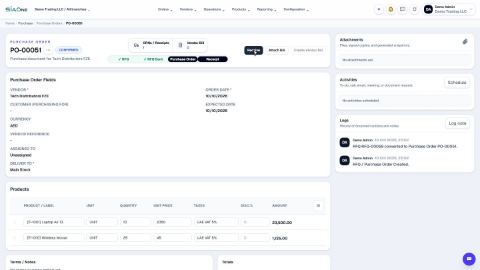
Create a purchase order
Start a request for quotation (RFQ) for a vendor, add the products, then confirm it into a purchase order.
Correct a confirmed purchase order
Wrong quantity or price on an order you have already confirmed? Use Correct order. The order stays confirmed, and stock, bills and payments follow.
Cancel an order or delete a draft RFQ
Cancel an order you no longer need and keep the record, or delete a draft RFQ for good.
 1:54
1:54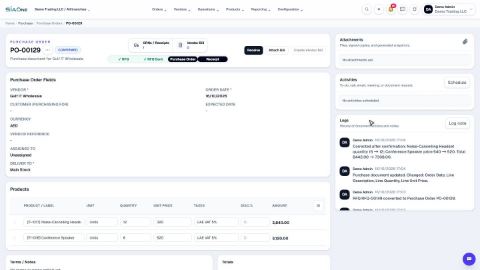 1:29
1:29 1:54
1:54