
Refund a customer
Pay a customer back from the bank or cash, against a posted credit note.
Before you start
You need a posted credit note for the customer. If you do not have one yet, read Issue a credit note first.
A refund is for a customer who has already paid. If the customer has not paid the invoice yet, there is no money to pay back - use Apply to Invoice on the credit note instead, as in Issue a credit note.
Steps
- Open Accounting > Customers > Credit Notes and open the posted credit note.
- Check that the credit note is Posted. Current Due shows the money you can still pay back.
- Click Refund.
- In Pay from, choose the bank or cash journal the money leaves from.
- Check the Amount. It can be the full amount or less, but never more than the amount available to refund.
- Click Refund. The money goes out of the journal you chose and the credit note becomes Paid. Current Due is now 0.00.
- Look at the top of the credit note. A Refunds button now shows the refund. It is recorded as a journal entry in the bank journal, not as a customer payment - so the Payments counter stays at 0.
Tip
To refund only part of the credit, type a smaller Amount. The credit note becomes Partially Paid and you can refund the rest later.
Note
A refund is not listed under Customer Payments. To see it, click Refunds on the credit note, or look in Accounting > Journal Entries.
Note
A refund pays the customer in money. If you would rather keep the credit for their next invoice, do nothing and apply it to that invoice later with Apply to Invoice.
What happens next
The credit note is closed and the money has left the bank. To record money the customer pays you, read Record a customer payment.
 2:18
2:18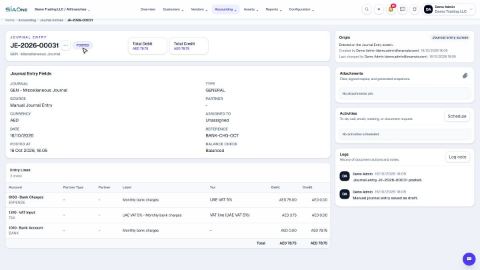 1:47
1:47