
Register a fixed asset and run depreciation
Add an asset such as a vehicle, see its depreciation board, confirm it, and post the depreciation each month.
Before you start
The Assets menu appears only when Enable Asset Management is switched on in Settings > Accounting. An administrator can do this. You also need to know the cost of the asset, the date you got it, and how long it will last.
Steps
- Open Accounting > Assets > Assets and click New Asset.
- Type the Asset name (for example Delivery van - grey), the Acquisition date, the Cost (original value) and the Salvage value - what it should still be worth at the end of its life. The salvage value is not depreciated.
- Under Depreciation, choose the Method (Straight line loses the same amount every period), how often (Every Monthly, Quarterly, Half-yearly or Yearly) and the Number of periods. SiaOne shows the length in years: 60 monthly periods is 5 years.
- Check the three accounts under Accounts: the Asset account (where the cost sits), the Accumulated depreciation account, and the Depreciation expense account. SiaOne fills them in; change them only if you use different accounts.
- Scroll down and click Save at the bottom right. The asset is a Draft with a Depreciation board - a preview of every period, with the amount, the running total and the book value.
- Click Confirm, then click Confirm again in the box that asks you to be sure. SiaOne creates the real depreciation schedule, and the status becomes Running.
- Choose a date next to Post Depreciation and click it. SiaOne posts the depreciation that is due up to that date. Accumulated Depreciation and Book Value at the top change, and the posted rows show on the board.
Tip
If you keep Asset Categories (in the Assets menu - see Set up asset categories), choose a Category next to the asset name. It fills in the depreciation rules for you - check the three accounts before you save.
Tip
Run Depreciation on the Assets list posts what is due for all assets at once - handy at month end.
Note
Pause stops depreciation for a while, Reset to Draft removes the schedule so you can change the asset, and Sell / Dispose takes the asset out of the register when you sell or scrap it.
What happens next
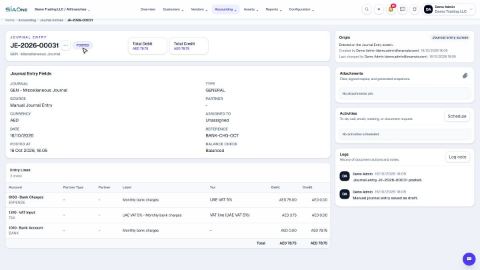
Each posted period is a journal entry that debits the depreciation expense account and credits the accumulated depreciation account. You can see the result in Reports > Balance Sheet and Profit and Loss.
 1:47
1:47 2:26
2:26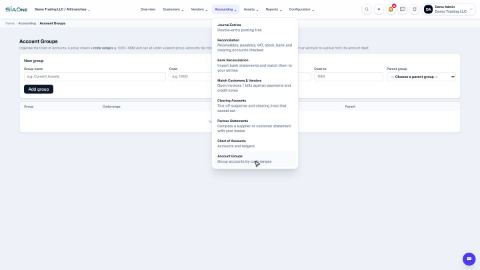 1:27
1:27