
Reset a posted invoice to draft
Take a posted invoice back to draft, correct it, and post it again with the same number.
Where to find it
AccountingCustomersCustomer Invoices
Before you start
Reset an invoice only to correct a mistake. The invoice must have no payment against it. If it has been paid, open the payment first and unallocate it.
If the customer already has the invoice or the goods, a credit note is usually better - see Issue a credit note.
Steps
- Open Accounting > Customers > Customer Invoices and open the posted invoice.
- Open the actions menu (⋯) and choose Reset to Draft. Scroll the menu if you do not see it.
- Read the question and click Reset to Draft. The invoice's journal entry is removed and the invoice is a Draft again. If the invoice delivered stock, that delivery is reversed too.
- Correct what was wrong - for example, change the Quantity - and save your changes.
- Click Confirm. The invoice is Posted again and keeps its number.
Note
SiaOne blocks the reset if a delivered item has moved since. In that case, issue a credit note or take a return instead.
Tip
Journal entries and payments have a Reset to Draft choice in their actions menu too.
What happens next
Once the corrected invoice is posted, record the customer's payment as usual - see Record a customer payment.
Was this lesson helpful?
Thank you for the feedback.
Keep learning
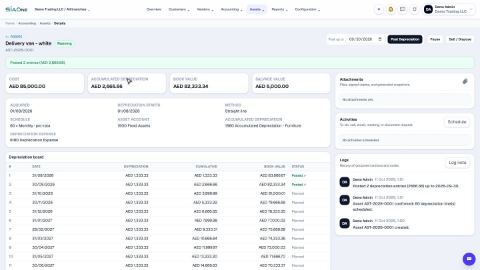
Register a fixed asset and run depreciation
Add an asset such as a vehicle, see its depreciation board, confirm it, and post the depreciation each month.
Reconcile a bank statement
Import the statement from your bank, let SiaOne match each line to a payment, and post the bank charges your books do not have yet.
Record a manual journal entry
Post your own debit and credit lines for something no invoice, bill or payment covers - such as a bank charge with VAT, or a correction.
 2:18
2:18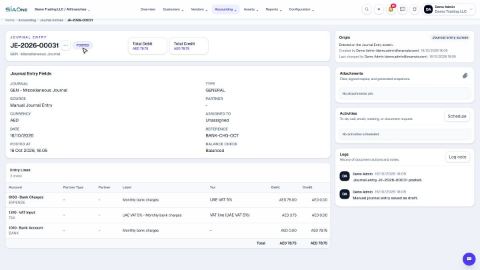 1:47
1:47