
Record a vendor bill
Enter a bill you received from a supplier - for expenses or for products - and confirm it so it is posted.
Where to find it
AccountingVendorsVendor Bills
Before you start
You need the vendor in Vendors and the supplier's bill in front of you.
Steps
- Open Accounting > Vendors > Vendor Bills and click New.
- Choose the Vendor. Type the number printed on the supplier's invoice in Vendor Reference - it helps you find the bill later and stops you entering it twice.
- Check the Bill Date and set the Due Date - the day the bill must be paid.
- On the Expenses tab, type what the bill is for in Product / Label, then the Unit Price and the Taxes (choose UAE VAT 5% if the supplier charged VAT). The Account is the expense account the cost is posted to. Change it if the default is not right.
- For products you stock, open the Items tab. Pick the Product, type the Quantity, check the Unit Price and choose the Taxes. Click Add a product for more lines. The Totals at the bottom update as you type.
- Click Save Draft. A draft has no effect on the accounts yet, so you can come back and change it.
- Click Confirm. The bill gets its number (BILL-00047, for example) and is Posted. Current Due shows what you owe.
Tip
Got the bill as a PDF or photo? Click Upload Bill at the top of a new bill and SiaOne reads it for you. Check what it filled in before you confirm.
Note
Tick Billable on a line and choose a Customer to pass the cost on to that customer later.
What happens next
The amount is added to what you owe the vendor. When you pay it, follow Pay a vendor bill.
Was this lesson helpful?
Thank you for the feedback.
Keep learning
Create a customer invoice
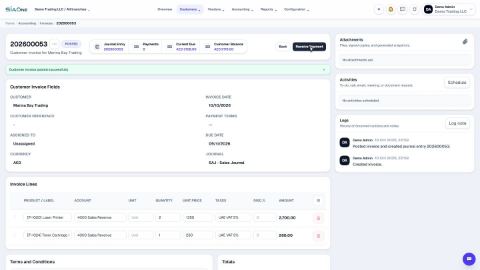
Create a tax invoice for a customer, save it as a draft, then confirm it so it is posted to the accounts.
Manage the chart of accounts and account groups
See the list of ledger accounts, add a new account, and see how account groups organise the accounts into the reports.
Set up journals
The sales, purchase, bank, cash and general journals - what each one is for and which accounts it uses.
 1:33
1:33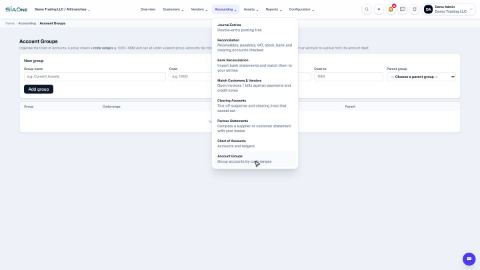 1:26
1:26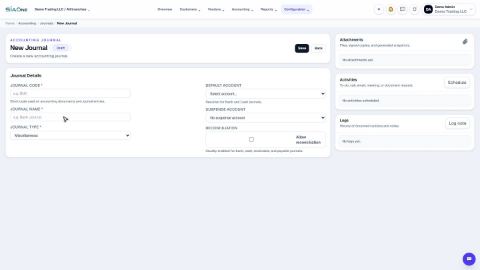 1:02
1:02