
Set up taxes (VAT rates)
Where the UAE VAT 5% rate is set up, which accounts it posts to, and how to add another tax rate.
Where to find it
AccountingConfigurationTaxes
Before you start
Your company already has UAE VAT 5%. You pick it on the lines of invoices and bills, and SiaOne works out the VAT and posts it for you. You only need this screen to check the rate, or to add a different one such as a zero-rated tax.
Steps
- Open Accounting > Configuration > Taxes.
- Each tax has a Usage - Sales, Purchase, or Sales & Purchase - and a Rate. The Defaults column says whether SiaOne picks the tax by itself on new lines (Not default if it does not).
- Sales Account and Purchase Account show where the tax is posted. For UAE VAT 5%, sales VAT goes to 2110 VAT Output and purchase VAT goes to 1310 VAT Input.
- Click a tax to open it. Tax Details are on the left and Tax Setup summarises it at the bottom. Archive hides a tax you no longer use.
- To add another rate, click New Tax. Type the Tax Name, choose the Usage, type the Rate %, and pick the Sales Account and Purchase Account. Tick Default Sales or Default Purchase if SiaOne should pick this tax automatically on new lines. Click Save.
Tip
For a sale or purchase with no VAT, leave the Taxes field on the line empty, or create a tax with a rate of 0.
Note
The VAT posted to these accounts is what Reports > Tax Report is built from.
What happens next
Choose the tax on the lines of your next customer invoice or vendor bill.
Was this lesson helpful?
Thank you for the feedback.
Keep learning
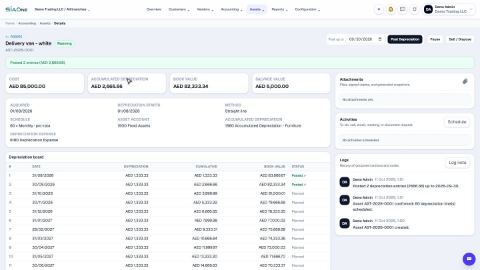
Register a fixed asset and run depreciation
Add an asset such as a vehicle, see its depreciation board, confirm it, and post the depreciation each month.
Reconcile a bank statement
Import the statement from your bank, let SiaOne match each line to a payment, and post the bank charges your books do not have yet.
Record a manual journal entry
Post your own debit and credit lines for something no invoice, bill or payment covers - such as a bank charge with VAT, or a correction.
 2:18
2:18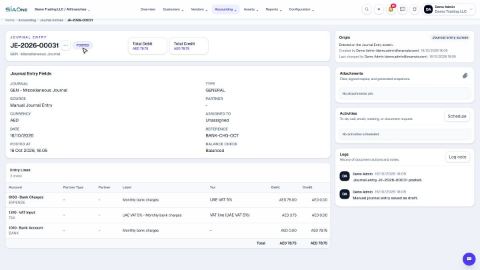 1:47
1:47