
Reconcile a bank statement
Import the statement from your bank, let SiaOne match each line to a payment, and post the bank charges your books do not have yet.
Before you start
- Download the statement for the month from your online banking as a CSV or Excel (.xlsx) file. It needs a Date column and either an Amount column (a minus sign means money out) or separate Debit / Credit (Withdrawal / Deposit) columns. A Balance column fills in the opening and closing balance for you.
- Payments you made and received should already be recorded in SiaOne, in the bank journal that matches this bank account.
Steps
- Open Accounting > Accounting > Bank Reconciliation and choose the account in Bank / Cash (for example BNK - Bank Journal). Earlier statements for that account are listed below.
- Click Import Statement and choose the file you downloaded. SiaOne tells you how many lines it read and which columns it used.
- Check the Name, the Statement date and the Opening balance and Closing balance, then click Create and Match. The statement opens with every line waiting to be matched.
- Click Auto-Match. SiaOne matches each line that fits exactly one payment or entry - same amount, a date within ten days, and the customer, vendor or number in the bank's description helps it choose. The Matched counter shows how many lines are done.
- For each line that is left, click Match. Tick the entry it belongs to and click Match Selected. If the bank charged something your books do not have yet - a fee or interest - type the account (for example Bank Charges) under Not in the books yet? and click Post Entry and Match. SiaOne posts the entry and matches it in one step.
- When every line is matched the statement shows Reconciled and Every line is matched. Click All Lines to see what each line was matched to.
Tip
No file from the bank? Click New Statement instead and type the lines in. Use + Add a line to add more lines to a statement.
Note
Unmatch frees a line again if you matched it to the wrong entry. Delete Statement removes the whole statement and releases its matches - the payments themselves stay.
Note
Auto-Match leaves a line alone when two entries fit equally well and nothing in the bank description tells them apart. Match those by hand.
What happens next
The Reconciliation Report button (also under Reports > Bank Reconciliation) shows the balance in your books, the deposits and payments the bank has not processed yet, and the statement balance side by side. Do this each month, then lock the closed period.
 1:59
1:59 1:59
1:59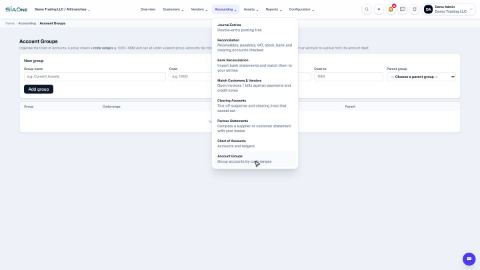 1:27
1:27