
Email many invoices at once
Send a whole period's invoices to your customers in one go - each customer gets their own invoice as a PDF, with one message you write once.
Where to find it
AccountingCustomersCustomer InvoicesEmail invoices
Before you start
- The invoices must be posted, and each customer needs an email address. The No email address card counts the customers that cannot be emailed.
- Email must be set up for your company - see Set up email. On the practice system used for these lessons email sending is switched off, so this lesson stops before the last click.
Steps
- Open Accounting > Customers > Customer Invoices and click Email invoices at the top right.
- Choose the invoices with From and To (it starts with this month). Keep Not emailed yet ticked to leave out invoices you already sent, and Unpaid only ticked to leave out paid ones. Type in Containing product / service to narrow the list further.
- Check the list. Every invoice is ticked. Untick the ones you do not want to send - the cards at the top show how many are Selected, the Amount due, and how many customers have No email address. Last emailed shows when each invoice was sent before.
- Write the message once. Subject and Email text can contain merge fields such as the customer name and the due date. Click a chip - Customer, Invoice no., Due date, Amount - to insert that detail where your cursor is, and read the Preview at the bottom to see how the first email will look.
- Optional: click Reminder to be reminded on a day you choose - for example the last day of every month - that invoices are ready to email. Nothing is sent without your review.
- Click Send (the button shows how many invoices, for example Send 36 invoices). Every customer receives their own invoice as a PDF, and the email is logged on each invoice.
Tip
Use the chips instead of typing a customer name, so each customer sees their own details.
Note
Invoices in different currencies can be in the same batch - the Amount due card then says Mixed currencies.
What happens next
Each sent invoice shows the date in Last emailed, so next month's batch with Not emailed yet ticked leaves it out. To email a single invoice, open it and use Send by Email in the actions menu.
Was this lesson helpful?
Thank you for the feedback.
Keep learning
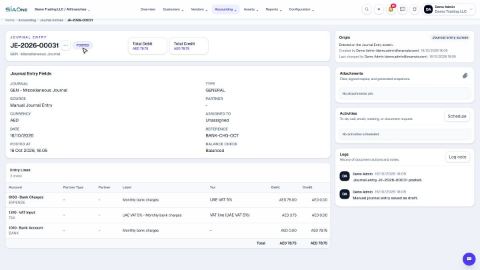
Record a manual journal entry
Post your own debit and credit lines for something no invoice, bill or payment covers - such as a bank charge with VAT, or a correction.
Record a vendor bill
Enter a bill you received from a supplier - for expenses or for products - and confirm it so it is posted.
Create a customer invoice
Create a tax invoice for a customer, save it as a draft, then confirm it so it is posted to the accounts.
 1:47
1:47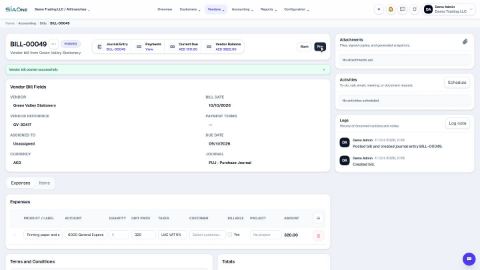 1:59
1:59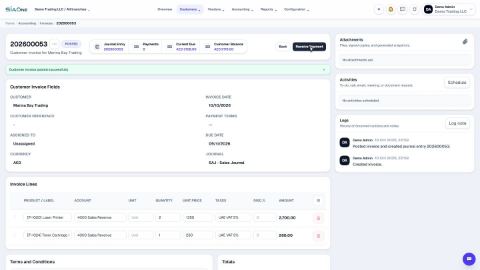 2:26
2:26