
Set up asset categories
Save the depreciation rules and accounts for a kind of asset once - such as vehicles over five years - and reuse them on every new asset.
Where to find it
AccountingAssetsAsset Categories
Before you start
The Assets menu appears only when Enable Asset Management is switched on in Settings > Accounting. Decide, for each kind of asset, how long it lasts and how it should lose its value - your accountant can tell you.
Steps
- Open Accounting > Assets > Asset Categories and click New Category.
- Type the Name - the kind of asset, for example Delivery vehicles.
- Choose the Method (Straight line loses the same amount every period), how often it depreciates under Every, and the No. of periods. 60 monthly periods is 5 years.
- Check the three accounts: the Fixed asset account (where the cost sits), the Accumulated depreciation account and the Depreciation expense account. SiaOne fills them in; change them if this kind of asset uses other accounts. You can also choose a Journal for the depreciation entries.
- Choose the options. Pro-rata first period depreciates only the days after the start date in the first period. Create draft assets from posted vendor bills on this asset account makes a draft asset whenever a bill is posted to the fixed asset account. One asset per unit turns a bill line of 5 laptops into 5 assets. Leave Active ticked.
- Click Save. The category appears in the list below. When you register a new asset, choose it in Category and the method, the period and the number of periods fill in - see Register a fixed asset and run depreciation.
Tip
Make one category for each kind of asset you buy: vehicles, IT equipment, furniture. A new asset then needs only a name, a date and a cost.
Note
Changing a category later does not change assets that already use it - each asset keeps the rules it was saved with.
What happens next
Register your first asset with the category: Register a fixed asset and run depreciation.
Was this lesson helpful?
Thank you for the feedback.
Keep learning
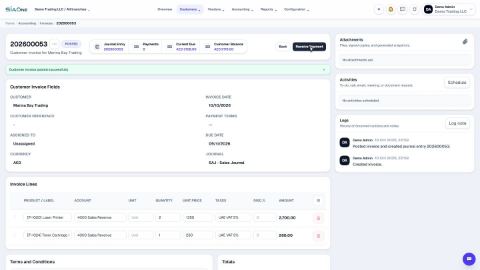
Create a customer invoice
Create a tax invoice for a customer, save it as a draft, then confirm it so it is posted to the accounts.
Record a manual journal entry
Post your own debit and credit lines for something no invoice, bill or payment covers - such as a bank charge with VAT, or a correction.
Record a vendor bill
Enter a bill you received from a supplier - for expenses or for products - and confirm it so it is posted.
 2:26
2:26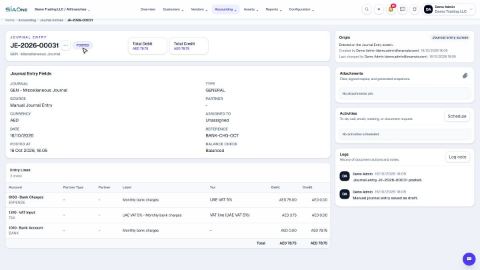 1:47
1:47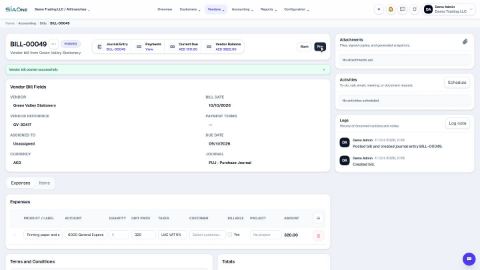 1:59
1:59