
Build your own report with the Report Builder
Choose the data, pick the columns, group and sort the lines, run the report, then save it and export it as PDF, Excel or CSV.
Where to find it
ReportsAll ReportsReport Builder
Before you start
Use the Report Builder for a list or total that none of the ready-made reports gives you. It reads posted data you are allowed to open.
Steps
- Open Reports, choose All Reports, then click Report Builder and New report.
- Type a name in Report name. Choose the Period: a ready-made one such as This year to date, or your own From and To dates.
- Under Data, choose what the report is made of: Journal items (General Ledger lines), Customer invoices & credit notes, Vendor bills & debit notes, Quotation & sales order lines, RFQ & purchase order lines, Stock moves, Products or Customers & vendors.
- Under Columns, tick the ones you want. Here we untick Date, Entry, Reference and Journal, and tick Account type, Debit and Credit. Use Add filter to keep only some lines.
- Under Group by, choose a column, for example Account. The number columns are added up for each group. Sort by and Order arrange the lines.
- Click Run to see the result.
- Click Save. Tick Share with others who can see this data first if your colleagues should use it too. Export gives you a PDF, Excel or CSV, and Share emails it. Your reports are listed under Report Builder, where you can open or delete them.
Note
Only you see a report unless you share it, and nobody sees data they have no access to.
Tip
For a report you run every month, use Share > Schedule email - see Email a report or schedule it.
What happens next
If a ready-made report is close to what you need, save its view and choose its columns instead.
Was this lesson helpful?
Thank you for the feedback.
Keep learning
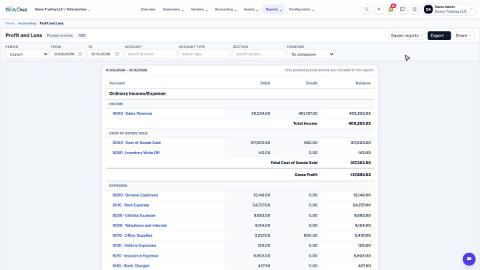
Run a Profit and Loss report
See your income, cost of goods sold, expenses and net profit for any period, compare it with last year or month by month, and open the entries behind any figure.
Run a Balance Sheet
See what the company owns, what it owes and what is left for the owners on any date, and compare it with last month or month by month.
Run the Cash Flow report
See where your cash came from and where it went in a period, split into operating, investing and financing activity.
 2:01
2:01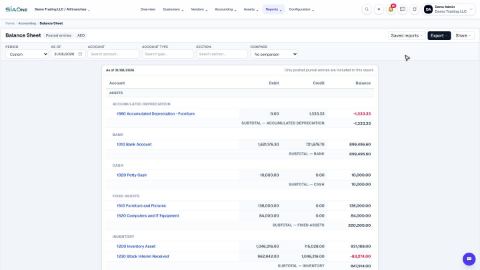 1:57
1:57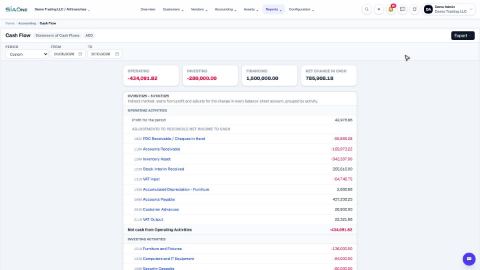 1:33
1:33