
Create a budget for your income and costs
Plan how much you expect to spend on a few accounts, month by month, then confirm the budget so reports can compare it with what really happened.
Where to find it
AccountingConfigurationBudgets
Before you start
Decide the period and the accounts you want to plan - for example rent, utilities, telephone and office supplies for the second half of the year.
Steps
- Open Accounting > Configuration and choose Budgets. Click New Budget.
- Type a Name (for example Budget Jul-Dec 2026), choose the From and To dates, and click Create and Fill In.
- In Add an account, type a few letters and pick an income or expense account. Repeat for every account you want to plan. Each one gets a row with a box for every month and a Total box.
- Type the amount for the whole period in Total. It is spread evenly over the months. You can also type a different amount in any month. Fill from Last Year copies last year's posted figures, and Adjust by % raises or lowers every figure by a percentage.
- Click Save, then Confirm. The status changes from Draft to Confirmed. Close locks a budget when the period is over, and Set to Draft opens it for changes again.
- Click Budget vs Actual to compare the plan with what was posted. See Compare your budget with actual spending.
Tip
The Income, Cost of Sales and Expenses sections each show a total, and Net Profit at the bottom is the budgeted profit.
Note
A budget in Draft can be deleted with Delete Budget. Set a confirmed budget back to Draft first.
What happens next
Compare your budget with actual spending every month.
Was this lesson helpful?
Thank you for the feedback.
Keep learning
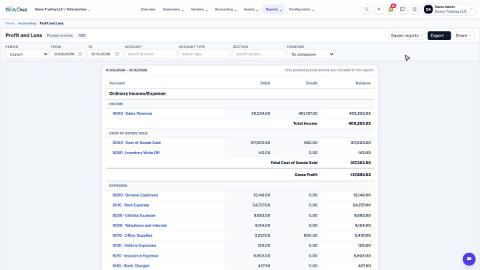
Run a Profit and Loss report
See your income, cost of goods sold, expenses and net profit for any period, compare it with last year or month by month, and open the entries behind any figure.
Run a Balance Sheet
See what the company owns, what it owes and what is left for the owners on any date, and compare it with last month or month by month.
Run the Cash Flow report
See where your cash came from and where it went in a period, split into operating, investing and financing activity.
 2:01
2:01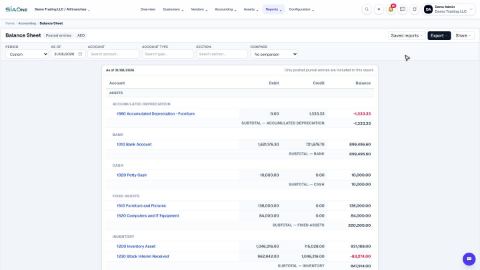 1:57
1:57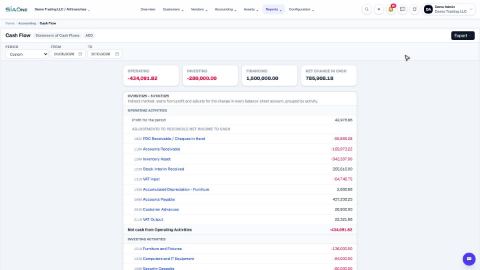 1:33
1:33