
Save a report view and choose its columns
Show only the columns you need, set the filters, then save the report under a name and open it again in one click.
Where to find it
AccountingReportsany reportCustomize and Saved reports
Before you start
Most reports have Customize and Saved reports at the top right. The steps below use Aged Receivable, but they work the same on Partner Ledger, Payment Register, Tax Report, General Ledger and many other reports.
Steps
- Open Accounting > Reports and choose Aged Receivable under Partners. Customize and Saved reports sit at the top right of the report.
- Click Customize. Tick the columns you want to see and untick the ones you do not need - for example untick Invoice Date and tick Age (Days). Columns marked extra are not shown by default. The arrows move a column up or down. A star after Customize means you have changed it. PDF, Excel and CSV use these columns, so your exports match what you see.
- Set the filters you want to keep, for example Due Status = Overdue.
- Click Saved reports, type a name such as Late customers in the box, and click Save. The name appears next to the report title. A saved report keeps the filters, the period and the columns. If you chose a ready-made Period such as Today or This month, it moves forward by itself each time you open the report. Dates you typed stay fixed.
- Next time, open Saved reports and click the name under My saved reports: the filters and columns come back. Click Back to the standard report to leave it.
- To remove a saved report, open Saved reports and click the × next to its name. To bring back the standard columns, open Customize and click Reset to default.
Note
Saved reports and column choices belong to you. Other users do not see them.
Tip
All my saved reports at the bottom of the menu opens the list of all reports. To email a saved report on a schedule, see Email a report or schedule it.
What happens next
Use Subtotal by in Customize to add a subtotal for every customer, vendor or month. Then choose the report period.
Was this lesson helpful?
Thank you for the feedback.
Keep learning
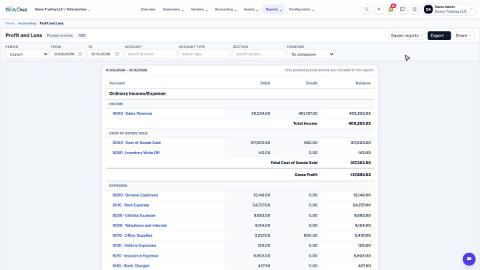
Run a Profit and Loss report
See your income, cost of goods sold, expenses and net profit for any period, compare it with last year or month by month, and open the entries behind any figure.
Run a Balance Sheet
See what the company owns, what it owes and what is left for the owners on any date, and compare it with last month or month by month.
Run the Cash Flow report
See where your cash came from and where it went in a period, split into operating, investing and financing activity.
 2:01
2:01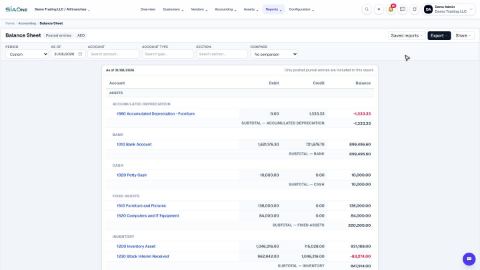 1:57
1:57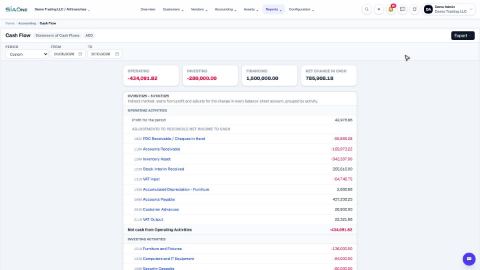 1:33
1:33