
Email a report or schedule it
Send any report by email now, or have it emailed to you or your team every day, week or month as a PDF, Excel or CSV file.
Where to find it
AccountingReportsany reportShare
Before you start
Email must be set up under Settings, otherwise the report cannot be sent. See Set up email.
Steps
- Open the report you want to send, for example Profit and Loss. Pick a ready-made Period such as Last month. A scheduled report moves forward with the calendar only when it uses a ready-made period. Dates you typed stay fixed.
- Click Share, then Email now. Type the address in To (separate several with commas), edit the Subject, add a Message and choose the File: PDF, Excel or CSV.
- Click Send. The report goes out with the filters and columns you see on the screen.
- To send it on a timetable, click Share, then Schedule email. Give the schedule a Name and type the address in To.
- Choose Every day, week or month, the day (On for a week, Day of month for a month), the time (At) and the File. The schedule uses the filters on the screen at that moment.
- Click Schedule. To see your schedules, click Share and choose My scheduled reports: the list shows each schedule, when it runs, who gets it, when it runs next and when it last ran.
Note
Email sending is switched off on the test system used for the video, so the recording stops before Send and Schedule. On your own system, the report is emailed from the address set up in Settings.
Tip
Mail a report you use every month by first saving it with Save a report view and choose its columns. Share also works on Sales, Purchase, Inventory and CRM reports.
What happens next
Check the schedule list after the first run: the last column shows when it last ran.
Was this lesson helpful?
Thank you for the feedback.
Keep learning
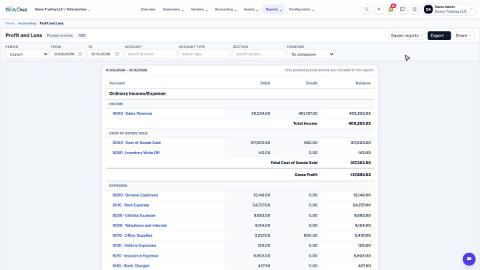
Run a Profit and Loss report
See your income, cost of goods sold, expenses and net profit for any period, compare it with last year or month by month, and open the entries behind any figure.
Run a Balance Sheet
See what the company owns, what it owes and what is left for the owners on any date, and compare it with last month or month by month.
Run the Cash Flow report
See where your cash came from and where it went in a period, split into operating, investing and financing activity.
 2:01
2:01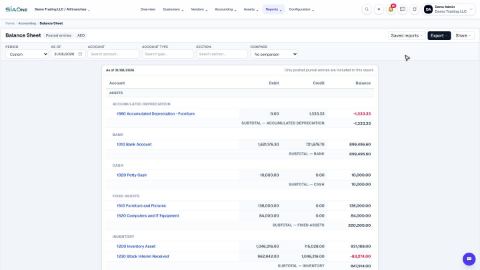 1:57
1:57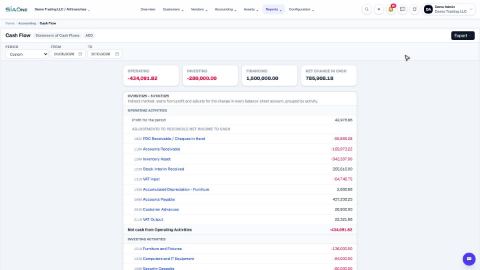 1:33
1:33