
Compare a supplier statement with your books
Upload the statement your vendor sent you and see which lines match your bills, which are only on their statement and which are only in your books.
Where to find it
AccountingAccountingReconciliationPartner Statements
Before you start
Ask the vendor for their statement of account as a CSV or Excel file. It needs a Date column and an Amount column (or Debit and Credit columns), like a bank statement. A Reference column helps the matching.
Steps
- Open Accounting, choose Reconciliation, then open the Partner Statements tab.
- Keep Supplier statement selected, then pick the vendor: type a few letters in Supplier and choose it. (Choose Customer statement to check a customer's statement the same way.)
- Click Choose File next to Their statement (CSV / Excel) and pick the file. The page tells you how many lines it read, and sets the dates from the file.
- If their statement shows what you owe them as a positive amount, tick Signs are the other way round. Check Period, then click Compare. Lines are matched on the amount first, then on the reference or document number, then on the nearest date (within 10 days).
- Read the summary: Matched lines, lines Only on their statement, lines Only in our books, and the Balance: ours / theirs.
- Use the buttons above the list - All, Matched, Only on their statement, Only in our books - to look at one group. A line only on their statement is usually a bill you have not recorded yet. A line only in your books is a bill the vendor has not recorded, or one that is dated outside the period.
Note
Comparing changes nothing in your books. Fix the differences yourself: record the missing bill, or ask the vendor to correct their statement.
Tip
To send a customer their own statement instead, see Send a customer their Statement of Account.
What happens next
Record any missing bill with Record a vendor bill, then compare again.
Was this lesson helpful?
Thank you for the feedback.
Keep learning
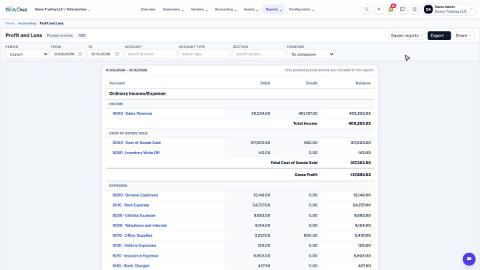
Run a Profit and Loss report
See your income, cost of goods sold, expenses and net profit for any period, compare it with last year or month by month, and open the entries behind any figure.
Run a Balance Sheet
See what the company owns, what it owes and what is left for the owners on any date, and compare it with last month or month by month.
Run the Cash Flow report
See where your cash came from and where it went in a period, split into operating, investing and financing activity.
 2:01
2:01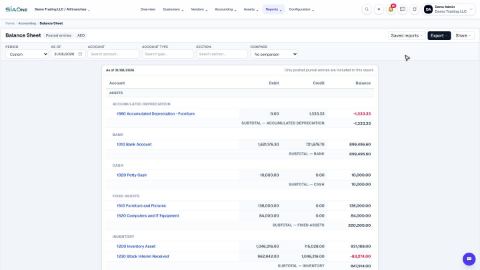 1:57
1:57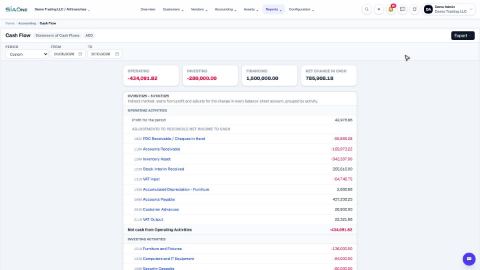 1:33
1:33