
See your post-dated cheques (Post-dated Cheques report)
List every cheque you received from customers and issued to vendors by cheque date, with its status, the days left to maturity and the total still pending.
Where to find it
AccountingReportsPost-dated Cheques
Before you start
The report lists cheques that were recorded as payments with the Post-dated Cheque method. See Record a post-dated cheque and Issue a post-dated cheque to a vendor.
Steps
- Open Accounting > Reports and choose Post-dated Cheques under Management.
- Type the From and To dates and press Tab after each. The period is the date the cheque was received or issued, not the date written on it.
- Each line is one cheque, sorted by Cheque Date. You see the Direction (Received from a customer or Issued to a vendor), the Partner, the Cheque No., the Payment number, the Bank, the Status, the Days to Maturity and the Amount. At the bottom, Cheques Received, Pending Received, Cheques Issued and Pending Issued add up the amounts.
- Open Direction and choose Received (Customers) to see only the cheques you hold, or Issued (Vendors) for the cheques you have given out.
- Use Status to show only Pending, Cleared, Bounced or Cancelled cheques. Due shows the cheques that are Overdue (Not Cleared), or due in the next 7 or 30 days, by the date written on the cheque. Bank narrows the list to one bank journal.
- Click a payment number to open the payment, then click Post-dated Cheques in the path at the top to return.
- Click Export and choose PDF, Excel or CSV.
Tip
Run it with Due set to the next 7 days at the start of every week, so you know which cheques to take to the bank and which of your own cheques will be presented.
Note
The report only counts posted payments. A cheque with no status yet is shown as Pending.
What happens next
When a cheque is honoured, open the payment and click Mark as Cleared. See Record a post-dated cheque.
Was this lesson helpful?
Thank you for the feedback.
Keep learning
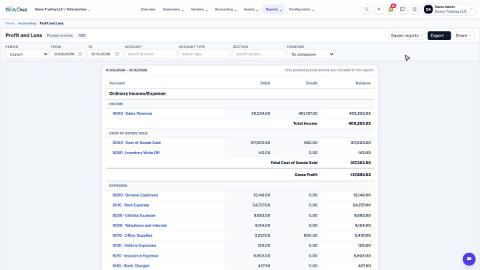
Run a Profit and Loss report
See your income, cost of goods sold, expenses and net profit for any period, compare it with last year or month by month, and open the entries behind any figure.
Run a Balance Sheet
See what the company owns, what it owes and what is left for the owners on any date, and compare it with last month or month by month.
Run the Cash Flow report
See where your cash came from and where it went in a period, split into operating, investing and financing activity.
 2:01
2:01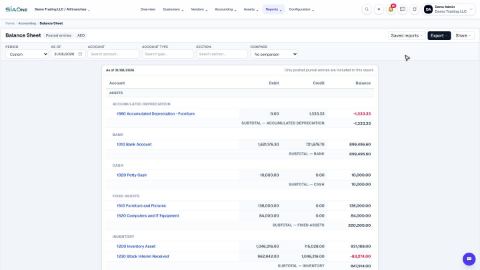 1:57
1:57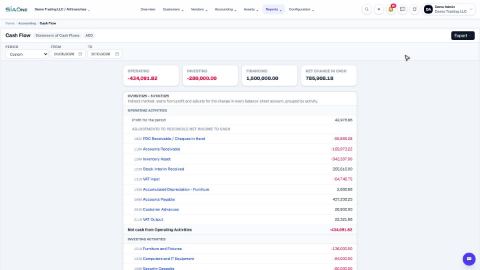 1:33
1:33