
Choose the report period and compare by month
Use the ready-made Period choices, type your own dates, and show a column for every month.
Where to find it
AccountingReportsany reportPeriod
Steps
- Open Accounting > Reports and choose Profit and Loss under Statements. Every report that covers a period starts with a Period box, then From and To.
- Open Period and pick a ready-made choice such as This month, Last month or This quarter. The From and To dates fill in by themselves.
- This year to date, This year, Last year and All dates cover longer stretches. All dates reads the whole history of the company.
- For anything else, type the From and To dates (DD/MM/YYYY) and press Tab after each. Period changes to Custom.
- Open Compare and choose By month. The report shows one column for every month of the period and a Total column at the end. On the Balance Sheet, By month (this year) shows every month-end of the year.
- Click a figure in a month column to open the entries behind it. Click Profit and Loss in the path at the top to come back.
Note
Reports that show a position on one day, such as the Balance Sheet and the aged reports, have Period choices such as Today and End of last month, and a single As of date.
Tip
Reports of Sales, Purchase, Inventory and CRM use the same Period box. Save the report with a ready-made period and it follows the calendar: see Save a report view and choose its columns.
What happens next
See the full Profit and Loss lesson for the other comparison choices.
Was this lesson helpful?
Thank you for the feedback.
Keep learning
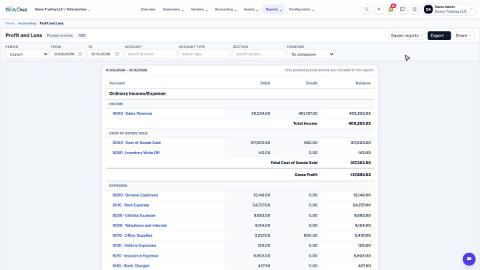
Run a Profit and Loss report
See your income, cost of goods sold, expenses and net profit for any period, compare it with last year or month by month, and open the entries behind any figure.
Run a Balance Sheet
See what the company owns, what it owes and what is left for the owners on any date, and compare it with last month or month by month.
Run the Cash Flow report
See where your cash came from and where it went in a period, split into operating, investing and financing activity.
 2:01
2:01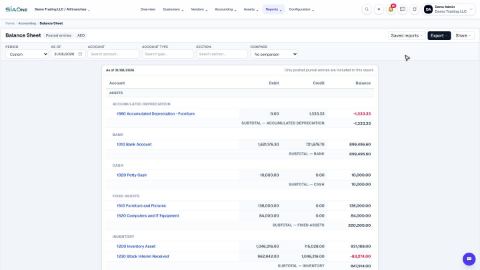 1:57
1:57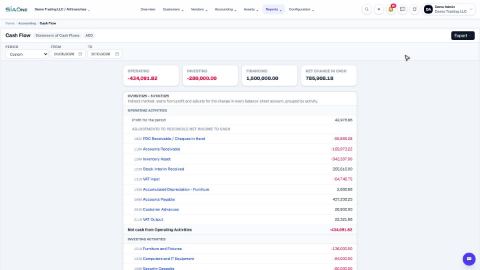 1:33
1:33